 Celebrate with up to 80% off
What is malware? How viruses, trojans, and ransomware work


Malware is often distributed through phishing attachments and malicious downloads, but it doesn't always look malicious. Some strains hide inside documents, browser extensions, or fake software installers. Others abuse legitimate system tools, run mostly in memory, or exploit software flaws before patches exist.
That range is part of what makes “what is malware in cybersecurity?” such a broad question. This guide covers what malware is, its common types, how it spreads, and how to protect your devices.
What is malware?
Malware, short for malicious software, is an umbrella term for software designed to disrupt a system, damage data, steal information, or give someone unauthorized access.
Types of malware
Malware families differ in how they spread and what they’re trying to achieve.
- Virus: People often use the terms malware and virus interchangeably, but a virus is only one type of malware. It attaches itself to a host file and spreads when someone opens or executes that host.
- Worm: Another type of self-replicating malware. But unlike a virus, a computer worm carries its own code for finding new targets and copying itself onto them, usually by exploiting a vulnerability in a network service, operating system, or connected device.
- Trojan: Trojan malware pretends to be a legitimate installer, document, or update, then does harm once installed.
- Ransomware: Malware that encrypts files or blocks access to systems until the victim pays. Verizon’s 2025 research recorded ransomware in 44% of all breaches it reviewed. Cisco notes that paying doesn’t guarantee the user will get a working decryption key.
- Spyware: Collects keystrokes, screenshots, messages, browsing history, location data, or saved credentials, then sends that data to the operator. The harm often surfaces later, through account abuse, identity theft, or exposure of private activity. Apple describes mercenary spyware as a distinct subcategory that targets specific individuals based on who they are or what they do, rather than the general public.
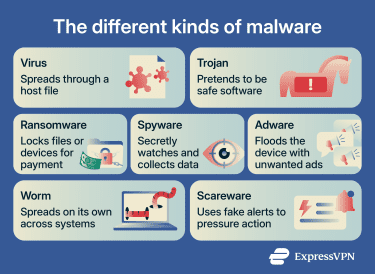
- Adware: Sits in a gray area. Legitimate ad-supported software discloses what it does and asks for consent. In contrast, malicious adware arrives through deceptive installs, tracks activity without meaningful consent, floods the browser with ads, or redirects users toward unsafe pages.
- Scareware: Displays alarming warnings claiming the device is infected, then prompts the user to install a bogus fix, buy fake software, or call a fraudulent support number. That places scareware at the intersection of malware and social engineering.
It’s worth mentioning that not every modern infection arrives as a file you can point to. Fileless threats are a broad class of malware that relies on memory, scripts, or built-in system tools.
Attackers may abuse trusted components such as browsers, certain applications, PowerShell, WMI, and PDF viewers to execute malicious activity while leaving fewer obvious traces on disk. Trojans, ransomware, or spyware can all be delivered this way.
How malware affects devices
Here’s what an infection can do to data, accounts, and devices, depending on which family it belongs to.
- Exfiltrate data: A large share of malware exists to steal information that criminals can reuse or sell. That includes passwords, banking details, session cookies, contact lists, saved browser data, and private files. Banking Trojans like Zeus are a prime example, using website monitoring and keylogging to capture financial login credentials when a user types them.
- Deny access: Some malware can restrict access to files, prevent the system from booting normally, or disrupt certain features.
- Establish monitoring: Malware can help the operator build a profile of the user’s login patterns, contacts, locations, and browsing habits. The payoff comes later, through account takeover, identity theft, fraud, or the sale of the data.
- Disrupt performance: This is usually a side effect of infection rather than the attacker's goal. As malware runs in the background, the device starts behaving abnormally, with random slowdowns, unexpected reboots, and unusually heavy resource usage. These signs matter because they're often the first thing a user notices, even when the underlying objective is theft or surveillance.
How malware spreads
Malware usually spreads through one of a few common channels. The method matters because it affects how the infection shows up and how far it spreads.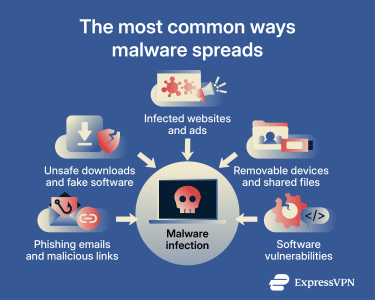
Phishing emails and malicious links
Phishing targets human judgment rather than technical weaknesses. Email, SMS, and messaging links or attachments are among the most common infection routes.
Learn more: Which email attachments are safe to open?
Unsafe downloads and fake software
A lot of malware arrives disguised as legitimate software, like a cracked app, a browser add-on, a "required" codec, or a software update prompt. The user runs the installer, and either the installer itself is malicious or it bundles malware alongside the advertised software.
Infected websites and ads
A compromised website can deliver malware in two ways. The first is a drive-by download. The page runs malicious code in the browser that exploits a vulnerability in the browser, a plugin, or the operating system, and could install malware without any click from the user.
The second is social engineering, where the page presents a fake update prompt, a fake virus warning, or a forced download dialog that tricks the user into installing the malware themselves.
Ads are a common delivery surface for both. Cisco lists malvertising, malicious code injected into ad networks that legitimate sites display, as a frequent ransomware distribution channel, which means a user can land on a trusted site and still be served the attack.
Removable devices and shared files
Malware infection can move from removable media to a new machine in two ways. A shortcut file on the drive may run hidden code if a user opens it. However, on modern patched systems, this relies on the user being tricked into double-clicking the file rather than triggering automatically. A USB device can also emulate a keyboard and inject commands on its own once plugged in.
Older systems with autorun enabled are the most vulnerable, because code on the drive executes automatically as soon as the drive is detected, without the user opening anything.
Software vulnerabilities
Some attacks exploit bugs in legitimate software, particularly in how it handles input. The attacker sends crafted input that triggers a flaw in the program's processing logic.
Common categories include memory corruption bugs (where the input overwrites parts of the program's memory it shouldn't reach) and input validation failures (where the program treats attacker-supplied data as instructions to execute).
The result is that the attacker's code runs inside the vulnerable program's process, with whatever permissions that program has on the device.
Verizon’s 2025 Data Breach Investigations Report found that exploitation of vulnerabilities reached 20% of breaches as an initial access vector, up 34% from the prior report. This increase was driven, in part, by the zero-day exploitation of edge devices and remote access gateways, since these systems sit at the network perimeter and often run software that takes input directly from the public internet.
How to reduce the risk of malware infections
There's no one setting that keeps malware out for good. Prevention works best as a layer of small, routine habits that close the openings attackers rely on. The tips below help you avoid infections and limit the fallout from the rest.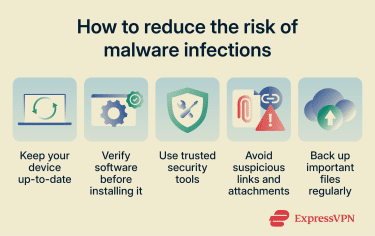
Update your device and apps
Software may ship with bugs that attackers can exploit. When developers find a flaw, they release a patch through an update. But until a user installs that update, the software remains vulnerable. That's why updates matter for the operating system, browsers, installed apps, extensions, and router or device firmware.
Turning on automatic updates is usually the easiest option. It’s also worth restarting the device when updates require it, because some fixes don’t fully apply until the system reboots.
Verify software before installing it
It’s recommended to only download software from official stores or verified vendor pages.
Before installing anything, check for strange file names, unnecessary permissions, poor reviews, unclear developer details, or a request to disable security settings during installation. Those signs don’t always prove the file is malicious, but they’re good reasons to pause before running it.
Learn more: How to avoid downloading malicious code
Use trusted security tools
A good security tool can scan and block unsafe downloads and warn you when it detects suspicious behavior. This matters because some malware runs in the background without producing obvious symptoms right away.
It’s best to keep security tools enabled all the time. Disabling protection, skipping scans, or dismissing warnings lowers the chances of catching a threat early. One reliable app is also better than several overlapping tools, which can slow the device down or conflict with each other.
Avoid suspicious links and attachments
The safest habit is to verify communications before acting on them. Check the sender, look closely at the URL, treat unexpected attachments with caution, and reach the official website or app directly instead of using a message link.
Also consider getting an ad, tracker, or malware blocker. For example, ExpressVPN’s Threat Manager blocks access to known malicious or phishing-related domains.
Extra caution is especially important when the message creates pressure, asks for personal information, or doesn’t match the way that person or service usually communicates.
Learn more: How to detect phishing attempts
Back up important files regularly
Backups don’t stop malware from infecting a device, but they make recovery much easier. If files are deleted, corrupted, or encrypted, a clean backup restores what was lost without depending on the infected device.
Store the backup separately from the device it protects. A constantly connected drive or always-synced folder can be hit by the same malware that reaches the main device. A safer setup uses more than one location, such as cloud storage paired with an external drive that's disconnected after each backup.
Signs your device may be infected
The clearest warning sign of malware is a pattern. Several unusual changes happen together, return after a restart, or hit browsers, accounts, and security settings at once.
Learn more: What's a possible sign of malware?
Browser signs
Malware and unwanted software commonly interfere with browsing activity. Watch for:
- Ads appearing on pages that don't normally show them.
- New tabs or windows opening on their own.
- Searches redirecting to unfamiliar websites or search engines.
- The homepage or default search engine changing without input.
- Fake security warnings demanding immediate action.
- Extensions or toolbars returning after removal.
- Settings reverting after you change them back.
Performance signs
Performance issues don’t always point to malware, but sudden changes are worth checking. Common signs include:
- Slowdowns during ordinary use.
- Apps freezing or closing on their own.
- The browser becoming unstable across multiple sites.
- The device restarting without a prompt.
- Fans running often during light use.
- Battery draining faster than expected.
- Storage filling up quickly.
Account signs
Some infections don’t aim to damage the device. They use it for access, monitoring, or communication, so the warning signs may show up on the user’s accounts rather than the device itself. For example:
- Login alerts from unfamiliar locations or devices.
- Password reset emails you didn't request.
- Unknown devices signed into an account.
- Account settings or recovery details changing unexpectedly.
Security tool signs
Malware may also interfere with the tools that could detect or remove it. These signs matter more when they appear alongside browser, performance, or account changes:
- Antivirus protection turning off on its own.
- Security scans failing to finish.
- Firewall settings changing without input.
- Browser protections disappearing.
- Security updates repeatedly failing to install.
- A security app refusing to open.
- Alerts or scan results vanishing.
How to respond to a malware infection
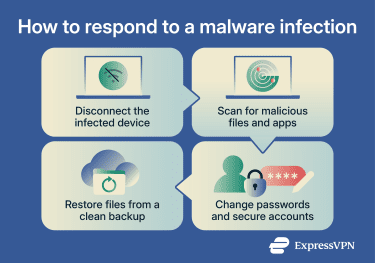
Disconnect the infected device
Cut the device’s network access first. Turn off Wi-Fi, unplug the Ethernet cable, or disable mobile data if the device uses it. This stops malware from communicating with remote servers, downloading additional payloads, or spreading laterally across the network.
You should also disconnect external drives, USB devices, and other hardware. If the malware copies itself onto them, connected storage can spread it further.
Scan for malicious files and apps
Run a full scan with a trusted security tool, not just a quick scan. A full scan takes longer but inspects more locations, including installed apps, recent downloads, temporary files, browser extensions, and the system folders where malware commonly hides.
If the scan flags anything, follow the tool's instructions to quarantine or remove it. After that, review the recently installed apps, browser extensions, and downloaded files manually. Anything unfamiliar, unused, or installed around the time the symptoms started is worth a second look.
Change passwords and secure accounts
Any password entered on the device after the infection could be exposed. Consider changing passwords for email, banking, cloud storage, social media, and work accounts from a different device.
This is also the right time to check account activity. Look for unknown devices, unfamiliar sessions, changed recovery details, forwarding rules, or messages you didn’t send. Turn on multi-factor authentication (MFA) where possible, and sign out of all other sessions.
Restore files from a clean backup
Restore files only after the device has been cleaned or reset. A backup is only safe if it was created before the infection and hasn’t been affected itself.
Don't restore everything at once. Start with personal files, then reinstall apps from official sources instead of restoring old installers or pulling files from unverified locations. If symptoms return after a restore, the backup likely contains infected files or compromised settings, in which case, stop and reassess before continuing.
FAQ: Common questions about malware
What is the difference between malware and a virus?
Can malware infect phones and tablets?
Can an antivirus remove every type of malware?
How can you tell if malware stole your information?
Can malware spread from one device to another?















Comments
Tiktok fans
Show more Show lessCan anyone help us track down someone's who using VPN to be untraceable he's or she's leaking harmful information on social media
Show more Show less